- 208.94.147.0/24
- 208.94.150.0/24
- 208.94.151.0/24
- 96.45.91.0/24
- 96.45.92.0/24
- 96.45.93.0/24
Installare Openstack su Rocky Linux
OpenStack is an open source solution that enables companies to deploy resources within a shortest time possible similar to commercially available cloud environments. The development of this solution is under Openstack foundation. Openstack is able to control large pools of compute, networking, and storage resources, all managed through APIs or a dashboard.
If you’re interested in building Infrastructure as a Service (IaaS) platforms – both private and public cloud, OpenStack is a solution you should consider. It comes with a dashboard (Horizon) that gives administrators control of the systems while empowering end users and tenants to provision resources through a web interface. Command line interface and REST API is also available for management and resources provisioning.
Packstack is command line tool that uses Puppet modules to deploy various parts of OpenStack on multiple pre-installed servers over SSH automatically. It only supports deployment of OpenStack on RHEL based systems, i.e CentOS, Red Hat Enterprise Linux (RHEL), Rocky Linux, AlmaLinux, e.t.c.
For this setup we’re using a server with the following hardware specifications.
CPU: Intel(R) Core(TM) i7-8700 CPU @ 3.20GHz (12 Cores)
Memory: 128GB RAM
Disk: 2 x 1TB SSD
Network: 1Gbit
IPV4 Adresses: 1 x IPV4 + /27 Subnet (30 IPs)
It’s your responsibility to perform OS installation on the server prior to OpenStack installation on the system.
STEP 1: UPDATE SYSTEM AND SET HOSTNAME
It’s a recommendation that correct hostname is set on the server.
sudo hostnamectl set-hostname openstack-node.example.com
Ensure local name resolution is working on your server. Also consider adding an A record if you have a working DNS server in your infrastructure. If no DNS server the settings can be mapped in hosts file.
$ sudo vi /etc/hosts
192.168.10.11 openstack-node.example.com
Disable SELinux:
sudo setenforce 0
sudo sed -i ‘s/^SELINUX=.*/SELINUX=permissive/g’ /etc/selinux/config
If you’re performing the installation on Rocky Linux 8 / AlmaLinux 8, perform these extra steps:
# Disable Firewalld
sudo systemctl disable firewalld
sudo systemctl stop firewalld
# Install network-scripts package
sudo dnf install network-scripts -y
# Disable NetworkManager
sudo systemctl disable NetworkManager
sudo systemctl stop NetworkManager
# Start Network Service
sudo systemctl enable network
sudo systemctl start network
Update your OS packages with below command:
sudo dnf update -y
A reboot is a good option after a successful upgrade.
sudo reboot
STEP 2: CONFIGURE OPENSTACK YOGA YUM REPOSITORY
As of the time this article is updated, the latest OpenStack release is Yoga. If you need more details on this OpenStack release refer to its official documentation.
sudo dnf -y install https://repos.fedorapeople.org/repos/openstack/openstack-yoga/rdo-release-yoga-1.el8.noarch.rpm
Confirm the repository has been added and usable on the system.
$ sudo dnf repolist
repo id repo name
advanced-virtualization CentOS-8 – Advanced Virtualization
appstream Rocky Linux 8 – AppStream
baseos Rocky Linux 8 – BaseOS
centos-nfv-openvswitch CentOS-8 – NFV OpenvSwitch
centos-rabbitmq-38 CentOS-8 – RabbitMQ 38
ceph-pacific CentOS-8 – Ceph Pacific
extras Rocky Linux 8 – Extras
openstack-yoga OpenStack Yoga Repository
Let’s update all packages on the system to the latest releases on the repos.
sudo dnf update -y
STEP 3: INSTALL PACKSTACK PACKAGE / GENERATE ANSWERS FILE
Enable PowerTools / CRB repositories:
sudo dnf config-manager –enable powertools
Install packstack which is provided by openstack-packstack package.
sudo dnf install -y openstack-packstack
Confirm successful installation by querying for the version.
$ packstack –version
packstack 20.0.0
Command options:
$ packstack –help
If you need customized installation of OpenStack on Rocky Linux 9 / Rocky Linux 8 then generate answers file which defines variables that modifies installation of OpenStack services.
sudo packstack –os-neutron-ml2-tenant-network-types=vxlan \
–os-neutron-l2-agent=openvswitch \
–os-neutron-ml2-type-drivers=vxlan,flat \
–os-neutron-ml2-mechanism-drivers=openvswitch \
–keystone-admin-passwd=StrongAdminPassword \
–nova-libvirt-virt-type=kvm \
–provision-demo=n \
–cinder-volumes-create=n \
–os-heat-install=y \
–os-swift-install=n \
–os-horizon-install=y \
–gen-answer-file /root/answers.txt
Install OpenStack – DevStack into Ubuntu VM
Set the Keystone / admin user password –keystone-admin-passwd. If you don’t have extra storage for Cinder you can use loop device for volume group by cinder-volumes-create=y but performance will not be good. Above are the standard settings but you can pass as many options as it suites your desired deployment.
You can modify the answers file generated to add more options.
sudo vi /root/answers.txt
STEP 4: INSTALL OPENSTACK WITH PACKSTACK
The easiest way is to deploy using default parameters and settings, this will configure the host as Controller and Compute.
#Disable the demo provisioning
sudo packstack –allinone –provision-demo=n
# With Demo
sudo packstack –allinone
If you’re using the contents in the answers file initiate deployment of OpenStack with the commands below:
sudo packstack –answer-file /root/answers.txt
Sample installation output extracted from out deployment:
Welcome to the Packstack setup utility
The installation log file is available at: /var/tmp/packstack/20220905-230443-accvjfxd/openstack-setup.log
Installing:
Clean Up [ DONE ]
Discovering ip protocol version [ DONE ]
Setting up ssh keys [ DONE ]
Preparing servers [ DONE ]
Pre installing Puppet and discovering hosts’ details [ DONE ]
Preparing pre-install entries [ DONE ]
Setting up CACERT [ DONE ]
Preparing AMQP entries [ DONE ]
Preparing MariaDB entries [ DONE ]
Fixing Keystone LDAP config parameters to be undef if empty [ DONE ]
Preparing Keystone entries [ DONE ]
Preparing Glance entries [ DONE ]
Checking if the Cinder server has a cinder-volumes vg [ DONE ]
Preparing Cinder entries [ DONE ]
Preparing Nova API entries [ DONE ]
Creating ssh keys for Nova migration [ DONE ]
Gathering ssh host keys for Nova migration [ DONE ]
Preparing Nova Compute entries [ DONE ]
Preparing Nova Scheduler entries [ DONE ]
Preparing Nova VNC Proxy entries [ DONE ]
Preparing OpenStack Network-related Nova entries [ DONE ]
Preparing Nova Common entries [ DONE ]
Preparing Neutron API entries [ DONE ]
Preparing Neutron L3 entries [ DONE ]
Preparing Neutron L2 Agent entries [ DONE ]
Preparing Neutron DHCP Agent entries [ DONE ]
Preparing Neutron Metering Agent entries [ DONE ]
Checking if NetworkManager is enabled and running [ DONE ]
Preparing OpenStack Client entries [ DONE ]
Preparing Horizon entries [ DONE ]
Preparing Swift builder entries [ DONE ]
Preparing Swift proxy entries [ DONE ]
Preparing Swift storage entries [ DONE ]
Preparing Gnocchi entries [ DONE ]
Preparing Redis entries [ DONE ]
Preparing Ceilometer entries [ DONE ]
Preparing Aodh entries [ DONE ]
Preparing Puppet manifests [ DONE ]
Copying Puppet modules and manifests [ DONE ]
Applying 192.168.200.5_controller.pp
192.168.200.5_controller.pp: [ DONE ]
Applying 192.168.200.5_network.pp
192.168.200.5_network.pp: [ DONE ]
Applying 192.168.200.5_compute.pp
192.168.200.5_compute.pp: [ DONE ]
Applying 192.168.200.5_controller_post.pp
192.168.200.5_controller_post.pp: [ DONE ]
Applying Puppet manifests [ DONE ]
Finalizing [ DONE ]
STEP 5: ACCESS OPENSTACK FROM CLI / HORIZON DASHBOARD
After a successful installation OpenStack can be administered using openstack CLI tool or from Web Dashboard. Take note of access details printed on the screen.
Additional information:
* Parameter CONFIG_NEUTRON_L2_AGENT: You have chosen OVN Neutron backend. Note that this backend does not support the VPNaaS plugin. Geneve will be used as the encapsulation method for tenant networks
* A new answerfile was created in: /root/packstack-answers-20220906-132920.txt
* Time synchronization installation was skipped. Please note that unsynchronized time on server instances might be problem for some OpenStack components.
* File /root/keystonerc_admin has been created on OpenStack client host 192.168.200.5. To use the command line tools you need to source the file.
* To access the OpenStack Dashboard browse to http://192.168.200.5/dashboard .
Please, find your login credentials stored in the keystonerc_admin in your home directory.
* Because of the kernel update the host 192.168.200.5 requires reboot.
* The installation log file is available at: /var/tmp/packstack/20220906-132920-0dgh5hr3/openstack-setup.log
* The generated manifests are available at: /var/tmp/packstack/20220906-132920-0dgh5hr3/manifests
Source keystonerc_admin file:
sudo -i
source ~/keystonerc_admin
List OpenStack services using commands shared below:
$ openstack service list
+———————————-+———–+————–+
| ID | Name | Type
+———————————-+———–+————–+
| 30b78dc06b9f4aa0ad5239e656d33f46 | cinderv3 | volumev3
| 324eeb0f88e2474786f00ff5d5d64819 | aodh | alarming
| 39c6ce97e8994234b6e42a9f34e8001e | neutron | network
| 3ec7e0dc135c41cc81651f5bee276a03 | keystone | identity
| 7da8184e096a440b810602d4cc5e964b | glance | image
| 907720359882414c90cbdce33d2dcac8 | gnocchi | metric
| 9b99c9f02cc345ce8d71635a5519113f | placement | placement
| c8f1c94982a64146897307dd8e3c8af8 | swift | object-store
| f856abaa681746f0b5bab1c0a8ec7365 | nova | compute
+———————————-+———–+————–+
To access Horizon Dashboard use the URL: http://ServerIPAddress/dashboard. Login with admin as User Name and Keystone Admin Password in cat ~/keystonerc_admin
STEP 6: CONFIGURE NEUTRON NETWORKING
Check your primary interface on the server:
$ ip ad
1: lo: <LOOPBACK,UP,LOWER_UP> mtu 65536 qdisc noqueue state UNKNOWN group default qlen 1000
link/loopback 00:00:00:00:00:00 brd 00:00:00:00:00:00
inet 127.0.0.1/8 scope host lo
valid_lft forever preferred_lft forever
inet6 ::1/128 scope host
valid_lft forever preferred_lft forever
2: ens18: <BROADCAST,MULTICAST,UP,LOWER_UP> mtu 1500 qdisc fq_codel state UP group default qlen 1000
link/ether f2:37:74:a4:77:ae brd ff:ff:ff:ff:ff:ff
inet 192.168.200.5/24 brd 192.168.200.255 scope global ens18
valid_lft forever preferred_lft forever
inet6 fe80::f037:74ff:fea4:77ae/64 scope link
valid_lft forever preferred_lft forever
3: ovs-system: <BROADCAST,MULTICAST> mtu 1500 qdisc noop state DOWN group default qlen 1000
link/ether 26:65:55:60:5b:aa brd ff:ff:ff:ff:ff:ff
4: br-ex: <BROADCAST,MULTICAST,UP,LOWER_UP> mtu 1500 qdisc noqueue state UNKNOWN group default qlen 1000
link/ether 96:12:ae:de:e9:40 brd ff:ff:ff:ff:ff:ff
inet6 fe80::9412:aeff:fede:e940/64 scope link
valid_lft forever preferred_lft forever
5: br-int: <BROADCAST,MULTICAST> mtu 1500 qdisc noop state DOWN group default qlen 1000
link/ether b2:bd:04:aa:2a:ae brd ff:ff:ff:ff:ff:ff
Migrate your primary interface network configurations to a bridge. These are the updated network configurations on my server.
$ sudo vi /etc/sysconfig/network-scripts/ifcfg-ens18
DEVICE=ens18
ONBOOT=yes
TYPE=OVSPort
DEVICETYPE=ovs
OVS_BRIDGE=br-ex
$ sudo vi /etc/sysconfig/network-scripts/ifcfg-br-ex
DEVICE=br-ex
BOOTPROTO=none
ONBOOT=yes
TYPE=OVSBridge
DEVICETYPE=ovs
USERCTL=yes
PEERDNS=yes
IPV6INIT=no
IPADDR=192.168.200.5
NETMASK=255.255.255.0
GATEWAY=192.168.200.1
DNS1=192.168.200.1
Once the configurations for the network are updated, create OVS bridge and add the interface.
sudo ovs-vsctl add-port br-ex ens18
Reboot after making the changes to confirm the settings are corrent:
sudo reboot
Since NetworkManager service was disabled it cannot be used to manage network configurations. To restart network service using network.service.
sudo systemctl restart network.service
Confirm IP address information.
$ ip ad
1: lo: <LOOPBACK,UP,LOWER_UP> mtu 65536 qdisc noqueue state UNKNOWN group default qlen 1000
link/loopback 00:00:00:00:00:00 brd 00:00:00:00:00:00
inet 127.0.0.1/8 scope host lo
valid_lft forever preferred_lft forever
inet6 ::1/128 scope host
valid_lft forever preferred_lft forever
2: ens18: <BROADCAST,MULTICAST,UP,LOWER_UP> mtu 1500 qdisc fq_codel master ovs-system state UP group default qlen 1000
link/ether f2:37:74:a4:77:ae brd ff:ff:ff:ff:ff:ff
inet6 fe80::f037:74ff:fea4:77ae/64 scope link
valid_lft forever preferred_lft forever
3: ovs-system: <BROADCAST,MULTICAST> mtu 1500 qdisc noop state DOWN group default qlen 1000
link/ether 02:ab:a7:4f:0a:9d brd ff:ff:ff:ff:ff:ff
4: br-int: <BROADCAST,MULTICAST> mtu 1500 qdisc noop state DOWN group default qlen 1000
link/ether b2:bd:04:aa:2a:ae brd ff:ff:ff:ff:ff:ff
5: br-ex: <BROADCAST,MULTICAST,UP,LOWER_UP> mtu 1500 qdisc noqueue state UNKNOWN group default qlen 1000
link/ether 02:86:4d:4d:c0:40 brd ff:ff:ff:ff:ff:ff
inet 192.168.200.5/24 brd 192.168.200.255 scope global br-ex
valid_lft forever preferred_lft forever
inet6 fe80::86:4dff:fe4d:c040/64 scope link
valid_lft forever preferred_lft forever
Create private network on OpenStack.
$ openstack network create private
+—————————+————————————–+
| Field | Value
+—————————+————————————–+
| admin_state_up | UP
| availability_zone_hints |
| availability_zones |
| created_at | 2022-09-06T12:03:11Z
| description |
| dns_domain | None
| id | 6b311b90-3ee3-4ad8-a746-853d3952fabe
| ipv4_address_scope | None
| ipv6_address_scope | None
| is_default | False
| is_vlan_transparent | None
| mtu | 1442
| name | private
| port_security_enabled | True
| project_id | 8b20c86cf35943af8a17cb1805ea52d1
| provider:network_type | geneve
| provider:physical_network | None
| provider:segmentation_id | 11
| qos_policy_id | None
| revision_number | 1
| router:external | Internal
| segments | None
| shared | False
| status | ACTIVE
| subnets |
| tags |
| updated_at | 2022-09-06T12:03:11Z
+—————————+————————————–+
Create a subnet for the private network:
$ openstack subnet create –network private –allocation-pool \
start=172.20.20.50,end=172.20.20.200 \
–dns-nameserver 8.8.8.8 –dns-nameserver 8.8.4.4 \
–subnet-range 172.20.20.0/24 private_subnet
+———————-+————————————–+
| Field | Value
+———————-+————————————–+
| allocation_pools | 172.20.20.50-172.20.20.200
| cidr | 172.20.20.0/24
| created_at | 2022-09-06T12:04:27Z
| description |
| dns_nameservers | 8.8.4.4, 8.8.8.8
| dns_publish_fixed_ip | None
| enable_dhcp | True
| gateway_ip | 172.20.20.1
| host_routes |
| id | b5983809-f905-4419-b995-91ec3e22b401
| ip_version | 4
| ipv6_address_mode | None
| ipv6_ra_mode | None
| name | private_subnet
| network_id | 6b311b90-3ee3-4ad8-a746-853d3952fabe
| project_id | 8b20c86cf35943af8a17cb1805ea52d1
| revision_number | 0
| segment_id | None
| service_types |
| subnetpool_id | None
| tags |
| updated_at | 2022-09-06T12:04:27Z
+———————-+————————————–+
Create public network:
$ openstack network create –provider-network-type flat \
–provider-physical-network extnet \
–external public
+—————————+————————————–+
| Field | Value
+—————————+————————————–+
| admin_state_up | UP
| availability_zone_hints |
| availability_zones |
| created_at | 2022-09-06T12:05:27Z
| description |
| dns_domain | None
| id | 81ef07c8-9925-46e4-a1b8-25d860ef32bc
| ipv4_address_scope | None
| ipv6_address_scope | None
| is_default | False
| is_vlan_transparent | None
| mtu | 1500
| name | public
| port_security_enabled | True
| project_id | 8b20c86cf35943af8a17cb1805ea52d1
| provider:network_type | flat
| provider:physical_network | extnet
| provider:segmentation_id | None
| qos_policy_id | None
| revision_number | 1
| router:external | External
| segments | None
| shared | False
| status | ACTIVE
| subnets |
| tags |
| updated_at | 2022-09-06T12:05:27Z
+—————————+————————————–+
Define subnet for the public network. It could be an actual public IP network.
$ openstack subnet create –network public –allocation-pool \
start=192.168.200.10,end=192.168.200.200 –no-dhcp \
–subnet-range 192.168.200.0/24 public_subnet
+———————-+————————————–+
| Field | Value
+———————-+————————————–+
| allocation_pools | 192.168.200.10-192.168.200.200
| cidr | 192.168.200.0/24
| created_at | 2022-09-06T12:07:51Z
| description |
| dns_nameservers |
| dns_publish_fixed_ip | None
| enable_dhcp | False
| gateway_ip | 192.168.200.1
| host_routes |
| id | 7ee4595b-50cf-4074-9fa8-339376c4a71a
| ip_version | 4
| ipv6_address_mode | None
| ipv6_ra_mode | None
| name | public_subnet
| network_id | 81ef07c8-9925-46e4-a1b8-25d860ef32bc
| project_id | 8b20c86cf35943af8a17cb1805ea52d1
| revision_number | 0
| segment_id | None
| service_types |
| subnetpool_id | None
| tags |
| updated_at | 2022-09-06T12:07:51Z
+———————-+————————————–+
Create a router that will connect public and private subnets.
$ openstack router create private_router
+————————-+————————————–+
| Field | Value
+————————-+————————————–+
| admin_state_up | UP
| availability_zone_hints |
| availability_zones |
| created_at | 2022-09-06T12:08:21Z
| description |
| external_gateway_info | null
| flavor_id | None
| id | dfc365da-ab4e-484a-91bb-c2727627d448
| name | private_router
| project_id | 8b20c86cf35943af8a17cb1805ea52d1
| revision_number | 0
| routes |
| status | ACTIVE
| tags |
| updated_at | 2022-09-06T12:08:21Z
+————————-+————————————–+
Set external gateway as public network on the router.
openstack router set –external-gateway public private_router
Link private network to the router.
openstack router add subnet private_router private_subnet
Check to ensure network connectivity is working.
$ openstack router list
+————————————–+—————-+——–+——-+———————————-+
| ID | Name | Status | State
+————————————–+—————-+——–+——-+———————————-+
|dfc365da-ab4e-484a-91bb-c2727627d448 | private_router | ACTIVE | UP | 8b20c86cf35943af8a17cb1805ea52d1
+————————————–+—————-+——–+——-+———————————-+
$ openstack router show private_router | grep external_gateway_info
| external_gateway_info | {“network_id”: “81ef07c8-9925-46e4-a1b8-25d860ef32bc”, “external_fixed_ips”: [{“subnet_id”: “7ee4595b-50cf-4074-9fa8-339376c4a71a”, “ip_address”: “192.168.200.169”}], “enable_snat”: true} |
$ ping -c 2 192.168.200.169
PING 192.168.200.169 (192.168.200.169) 56(84) bytes of data.
64 bytes from 192.168.200.169: icmp_seq=1 ttl=254 time=0.260 ms
64 bytes from 192.168.200.169: icmp_seq=2 ttl=254 time=0.302 ms
— 192.168.200.169 ping statistics —
2 packets transmitted, 2 received, 0% packet loss, time 1004ms
rtt min/avg/max/mdev = 0.260/0.281/0.302/0.021 ms

STEP 7: SPIN A TEST INSTANCE
Our OpenStack Cloud platform should be ready for use. We’ll download Cirros cloud image.
mkdir ~/images && cd ~/images
sudo yum -y install curl wget
VERSION=$(curl -s http://download.cirros-cloud.net/version/released)
wget http://download.cirros-cloud.net/$VERSION/cirros-$VERSION-x86_64-disk.img
Upload Cirros image to Glance store.
openstack image create –disk-format qcow2 \
–container-format bare –public \
–file ./cirros-$VERSION-x86_64-disk.img “Cirros”
Confirm image uploaded
$ openstack image list
+————————————–+——–+——–+
| ID | Name | Status
+————————————–+——–+——–+
| 98d260ec-1ccc-46d6-bfb7-f52ca478dd0e | Cirros | active
+————————————–+——–+——–+
Create Security Group for all access.
openstack security group create permit_all –description “Allow all ports”
openstack security group rule create –protocol TCP –dst-port 1:65535 –remote-ip 0.0.0.0/0 permit_all
openstack security group rule create –protocol ICMP –remote-ip 0.0.0.0/0 permit_all
Create another security group for limited access – standard access ports ICMP, 22, 80, 443
openstack security group create limited_access –description “Allow base ports”
openstack security group rule create –protocol ICMP –remote-ip 0.0.0.0/0 limited_access
openstack security group rule create –protocol TCP –dst-port 22 –remote-ip 0.0.0.0/0 limited_access
openstack security group rule create –protocol TCP –dst-port 80 –remote-ip 0.0.0.0/0 limited_access
openstack security group rule create –protocol TCP –dst-port 443 –remote-ip 0.0.0.0/0 limited_access
List all security groups:
openstack security group list
Confirming. rules in the security group.
openstack security group show permit_all
openstack security group show limited_access
Create Private Key
$ ssh-keygen # if you don’t have ssh keys already
Add key to Openstack:
$ openstack keypair create –public-key ~/.ssh/id_rsa.pub admin
+————-+————————————————-+
| Field | Value
+————-+————————————————-+
| created_at | None
| fingerprint | 63:c9:01:ae:57:89:f8:ff:4b:e9:0e:68:7d:49:be:eb
| id | admin
| is_deleted | None
| name | admin
| type | ssh
| user_id | 720b4dce6c2946c9bc71ae3c3032e256
+————-+————————————————-+
Confirm keypair is available on OpenStack:
$ openstack keypair list
+——-+————————————————-+
| Name | Fingerprint
+——-+————————————————-+
| admin | 19:7b:5c:14:a2:21:7a:a3:dd:56:c6:e4:3a:22:e8:3f
+——-+————————————————-+
Listing available networks:
$ openstack network list
+————————————–+———+————————————–+
| ID | Name | Subnets
+————————————–+———+————————————–+
| 6b311b90-3ee3-4ad8-a746-853d3952fabe | private | b5983809-f905-4419-b995-91ec3e22b401
| 81ef07c8-9925-46e4-a1b8-25d860ef32bc | public | 7ee4595b-50cf-4074-9fa8-339376c4a71a
+————————————–+———+————————————–+
Check available instance flavors:
$ openstack flavor list
+—-+———–+——-+——+———–+——-+———–+
| ID | Name | RAM | Disk | Ephemeral | VCPUs | Is Public
+—-+———–+——-+——+———–+——-+———–+
| 1 | m1.tiny | 512 | 1 | 0 | 1 | True
| 2 | m1.small | 2048 | 20 | 0 | 1 | True
| 3 | m1.medium | 4096 | 40 | 0 | 2 | True
| 4 | m1.large | 8192 | 80 | 0 | 4 | True
| 5 | m1.xlarge | 16384 | 160 | 0 | 8 | True
+—-+———–+——-+——+———–+——-+———–+
Let’s create an instance on the private network
openstack server create \
–flavor m1.tiny \
–image “Cirros” \
–network private \
–key-name admin \
–security-group permit_all \
mycirros
Check if the instance is created successfully.
$ openstack server list
+————————————–+———-+——–+———————-+——–+———+
| ID | Name | Status | Networks
+————————————–+———-+——–+———————-+——–+———+
| a261586f-bfff-46fa-9eb8-6f002e548429 | mycirros | ACTIVE | private=172.20.20.67
+————————————–+———-+——–+———————-+——–+———+
To associate a floating IP from the public subnet use the guide below:
Assign a Floating IP Address to an Instance in OpenStack
For simplicity we’ll include commands here:
$ openstack floating ip create –project admin –subnet public_subnet public
+———————+————————————–+
| Field | Value
+———————+————————————–+
| created_at | 2022-09-06T12:30:29Z
| description |
| dns_domain |
| dns_name |
| fixed_ip_address | None
| floating_ip_address | 192.168.200.110
| floating_network_id | 81ef07c8-9925-46e4-a1b8-25d860ef32bc
| id | 8f7b287c-b3a0-4fa3-b496-1940f3d86466
| name | 192.168.200.110
| port_details | None
| port_id | None
| project_id | 8b20c86cf35943af8a17cb1805ea52d1
| qos_policy_id | None
| revision_number | 0
| router_id | None
| status | DOWN
| subnet_id | 7ee4595b-50cf-4074-9fa8-339376c4a71a
| tags | []
| updated_at | 2022-09-06T12:30:29Z
+———————+————————————–+
$ openstack server add floating ip mycirros 192.168.200.110
$ openstack server list
+————————————–+———-+——–+—————————————+——–+———+
| ID | Name | Status | Networks
+————————————–+———-+——–+—————————————+——–+———+
| a261586f-bfff-46fa-9eb8-6f002e548429 | mycirros | ACTIVE | private=172.20.20.67, 192.168.200.110
+————————————–+———-+——–+—————————————+——–+———+
#Ping Server
$ ping -c 2 192.168.200.110
PING 192.168.200.110 (192.168.200.110) 56(84) bytes of data.
64 bytes from 192.168.200.110: icmp_seq=1 ttl=63 time=0.926 ms
64 bytes from 192.168.200.110: icmp_seq=2 ttl=63 time=0.883 ms
— 192.168.200.110 ping statistics —
2 packets transmitted, 2 received, 0% packet loss, time 1065ms
rtt min/avg/max/mdev = 0.883/0.904/0.926/0.036 ms
Once floating IP is assigned you can ssh to the instance with private key.
$ ssh cirros@192.168.200.110
The authenticity of host ‘192.168.200.110 (192.168.200.110)’ can’t be established.
ECDSA key fingerprint is SHA256:EDeKOm4TYWzqtH/2AJrIY1ss7OsM+KZ6/JHg/1fr2ec.
Are you sure you want to continue connecting (yes/no/[fingerprint])? yes
Warning: Permanently added ‘192.168.200.110’ (ECDSA) to the list of known hosts.
$ cat /etc/os-release
NAME=Buildroot
VERSION=2019.02.1-00002-g77a944c-dirty
ID=buildroot
VERSION_ID=2019.02.1
PRETTY_NAME=”Buildroot 2019.02.1″
$ ping computingforgeeks.com -c 2
PING computingforgeeks.com (104.26.5.192): 56 data bytes
64 bytes from 104.26.5.192: seq=0 ttl=56 time=22.220 ms
64 bytes from 104.26.5.192: seq=1 ttl=56 time=22.190 ms
— computingforgeeks.com ping statistics —
2 packets transmitted, 2 packets received, 0% packet loss
round-trip min/avg/max = 22.190/22.205/22.220 ms
Source: https://computingforgeeks.com/install-openstack-on-rocky-almalinux/
Ubuntu – vim tasti cursore non funzionano come ti aspetti
Nella tua home dir crea il file .vimrc in questo modo:
vim ~/.vimrc
Se ci sono altre linee nel file aggiungi alla fine questa impostazione:
set nocompatible
Se invece di "vim" hai installato "vi" il file si chiama .exrc
Windows orario indietro di un’ora dopo aver lanciato linux
Il motivo è che le Ubuntu e derivate impostano il RTC in UTC.
Per risolvere basta digitare:
timedatectl set-local-rtc 1 --adjust-system-clock
se lanciate timedatectl vedrete un messaggio di warning e il modo di ritornare alle impostazioni originali:
Local time: dom 2023-02-19 10:14:02 CET
Universal time: dom 2023-02-19 09:14:02 UTC
RTC time: dom 2023-02-19 09:14:02
Time zone: Europe/Rome (CET, +0100)
System clock synchronized: yes
NTP service: active
RTC in local TZ: yes
Warning: The system is configured to read the RTC time in the local time zone.
This mode cannot be fully supported. It will create various problems
with time zone changes and daylight saving time adjustments. The RTC
time is never updated, it relies on external facilities to maintain it.
If at all possible, use RTC in UTC by calling
‘timedatectl set-local-rtc 0’.
QNAP – “Caricamento in corso” per sempre…
Diciamo innanzitutto che se non hai abilitato SSH questo metodo non si puo’ attuare. Se invece lo avessi abilitato come admin ti fa entrare e a questo punto basta dare questi comandi:
/etc/init.d/thttpd.sh stop
mv /etc/config/.qos_config /etc/config/.qos_config.old
/etc/init.d/thttpd.sh start
Eventualmente dai diverse volte lo stop.. a volte non sempre riesce a fermare il processo alla prima.. ho notato che se lo fai come dice qnap ovvero con il processo attivo a volte non riesce a fare il ‘mv’…
Qnap – Snapshots
E’ una caratteristica che ormai è stata resa disponibile su tutti i modelli di NAS Qnap. Effettivamente, visto il proliferare di virus che crittografano i dati rendendoli di fatto irrecuperabili se non dietro compenso economico, tra l’altro, solitamente in bitcoin, l’uso delle snapshot è diventato comune. Il termine snapshot è autoespicativo, ma alcune caratteristiche magari non sono così evidenti. In buona sostanza uno snapshot è una fotografia di un DataVol (così vengono chiamati i volumi nei NAS Qnap) oppure di una cartella (Snapshots folder) – di questa particolare caratteristica ne parlo più avanti che ‘congela’ di fatto i dati in quel momento. Questa fotografia è realmente immutabile, non è possibile modificarla in quanto è un DataVol montato in sola lettura. Mi spiego con un esempio, anche se potrebbe essere ostico per chi non ha conoscenze del sistema operativo linux (eh già anche Qnap ha customizzato un linux come tanti altri…)
Qui sotto vedi i mountpoint della mai Qnap: puoi notare che Datavol1 (cachedev1) e DataVol2(cachedev2) sono montati in ‘read/write’ mentre le 7 snapshots (che qui le vedi come vg1-snap1000(0-7) sono montate in ‘read-only’ e come sai non c’è proprio il modo di scrivere su un volume montato in ‘read-only’ a meno di non smontarlo e rimontarlo in ‘read/write’.
Altra caratteristica interessante è lo spazio usato dalle snapshots. Qui vedi la mia Qnap che ha un pool di archiviazione di 5.44 TB e due DataVol: uno di sistema, dove vengono immagazinate le applicazioni e altri dati caratteristici del sistema operativo di Qnap e alcune cartelle per me importanti e dopo un secondo DataVol dove immagazzino dati che posso anche permettermi di perdere. Come puoi vedere sul DataVol1 ci sono 7 snapshot mentre sul DataVol2 non ho snapshot. Se leggi nel riquadro a destra noterai che, malgrado ho 7 snapshot sul DataVol1 e che il DataVol1 è pieno quasi all’80%, le 7 snapshots ‘pesano’ solamente 150GB. Le snapshot contengono solo i dati modificati oppure cancellati: sino a che tu scrivi nuovi dati sul tuo volume questi non vengono salvati sulle snapshot e il motivo è che… sono già sul tuo volume e non c’è bisogno di scriverle sullo snapshot.
Oltre a questo puoi configurare, nel momento che crei una share (cartella condivisa), configurarla come una ‘Snapshot folder’, anche se onestamente non vedo questa grande ultità, questa caratteristica potrebbe essere fruibile se hai in mente che spesso farai dei restore di snapshot. Con questo modo dovrebbero essere più veloci. In realtà il modo di funzionamento è che quando crei una Snapshot Folder il sistema crea un Datavol dedicato a questo folder in ‘thin mode’ in modo da ottimizzare lo spazio che sottrae al Pool principale. Onestamente, mi ripeto, se sei abituato a creare DataVol in ‘thin mode’ non vedo questa grande utilità. Forse Qnap voleva fare qualcosa per il suo sistema operativo QTS somigliante al QuTS Hero basato su ZFS? Anche sui forum si leggono perplessità per questa caratteristica.
Popcorn Hour A500
QNAP TES-1886u – Come passare a QTS da QES
Per passare a QTS bisogna spegnere la macchina, rimuovere tutti i dischi e riaccenderla. La macchina al riavvio avra’ lo stesso IP che aveva in precedenza. Da li c’e’ un pulsantino per passare in QTS. Ovviamente tutti i dati sui dischi verrrano persi.
Linux Chrony – Problema ora non corretta
A volte è meglio modificare la configurazione di default puntando i domain controller del dominio, specialmente se si rilevano delle differenze tra l’ora di linux e l’ora del dominio. Questo si evidenzia controllando CHRONY con questo comando:
[root@pinolalavatrice ~]# chronyc tracking
Reference ID : 00000000 ()
Stratum : 0
Ref time (UTC) : Thu Jan 01 00:00:00 1970
System time : 0.000000000 seconds slow of NTP time
Last offset : +0.000000000 seconds
RMS offset : 0.000000000 seconds
Frequency : 19.406 ppm slow
Residual freq : +0.000 ppm
Skew : 0.000 ppm
Root delay : 1.000000000 seconds
Root dispersion : 1.000000000 seconds
Update interval : 0.0 seconds
Leap status : Not synchronised
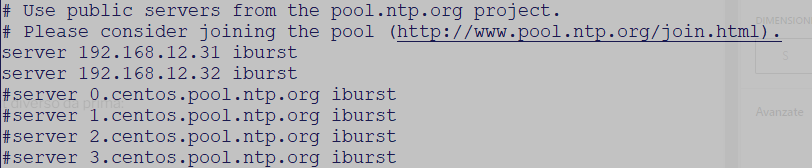
Si possono modificare i server di riferimento editando il file /etc/chronyd.conf e modificare il parametro server.. i miei domain controller sono 192.168.12.31/32 e metti il rem sui vecchi server:

Ora se fai ripartire CHRONYD con il comando ‘service chronyd restart’ e ripeti il comando precedente dovresti vedere un output come questo:
[root@pinolalavatrice ~]# chronyc tracking
Reference ID : C0A80C1F (192.168.12.31)
Stratum : 4
Ref time (UTC) : Thu Dec 01 09:27:23 2022
System time : 0.000006584 seconds fast of NTP time
Last offset : +0.000018689 seconds
RMS offset : 0.000018689 seconds
Frequency : 19.406 ppm slow
Residual freq : +7.332 ppm
Skew : 0.035 ppm
Root delay : 0.011093942 seconds
Root dispersion : 0.026704570 seconds
Update interval : 2.0 seconds
Leap status : Normal
Fonte: https://www.thegeekdiary.com/centos-rhel-7-configuring-ntp-using-chrony/
Scheda NIC Intel PRO/1000 Quad port (non funziona)
Siamo diventati scemi in due prima di scoprire il problema.. di default oggi i bios inizializzano il PCI-E come generazione 2.. questa scheda è compatibile solo con la generazione 1. Quindi se non funziona bisogna impostare il BIOS in modo che nello slot dove hai installatola scheda sia GEN1. Negli HP è qui: Power Management Options -> Advanced Power Management Options -> PCI Express Generation 2.0 Support -> Force PCI-E Generation 1